


This section of the application allows create a case from a project, service and a category.
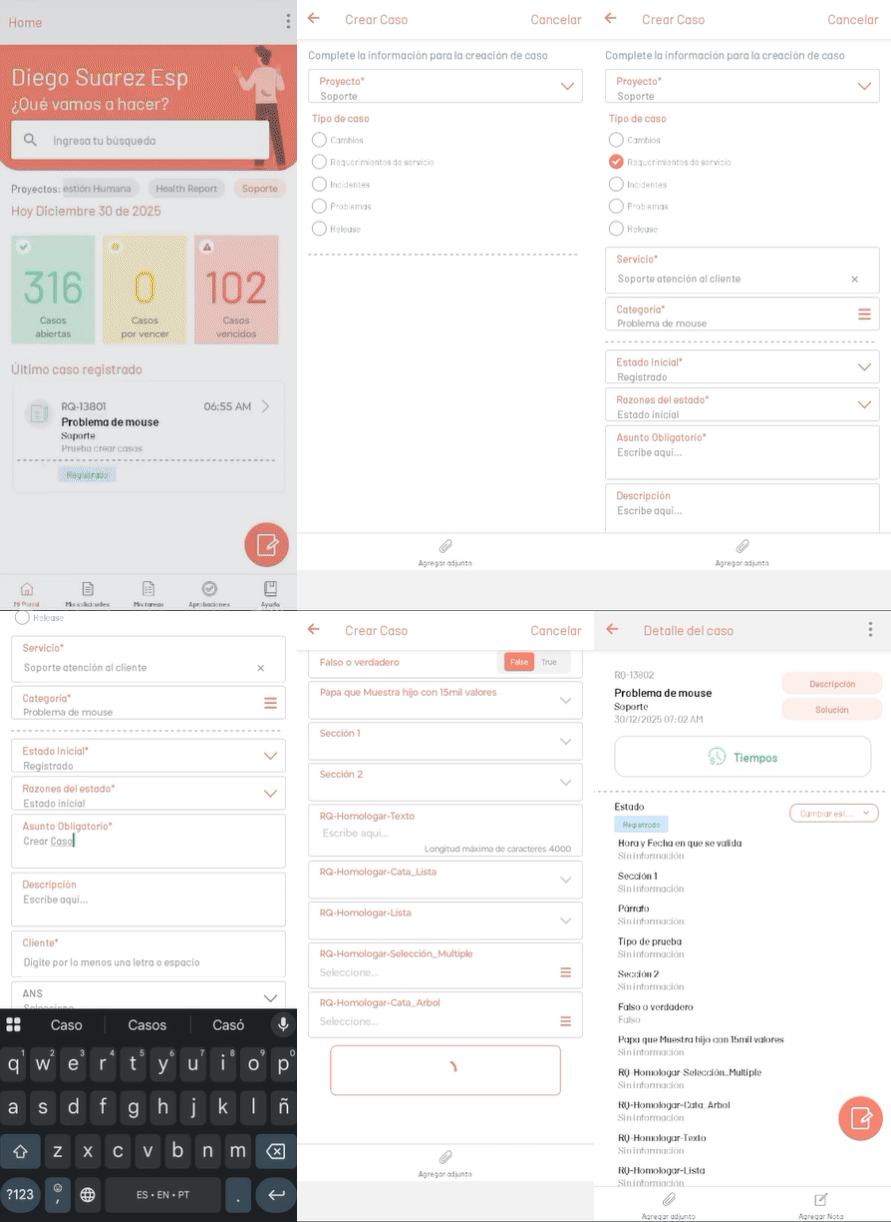
Create a case
1. To create a new case in the mobile console ASMS, click the  of Floating action at the bottom of the screen.
2. When uploading the case creation form, select the Project and the Case Type. Doing so enables the options to choose the service and the category.
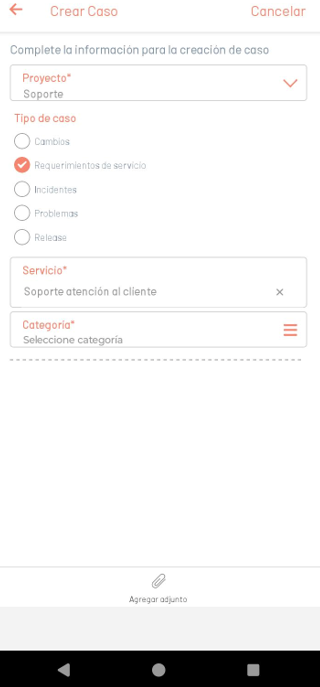
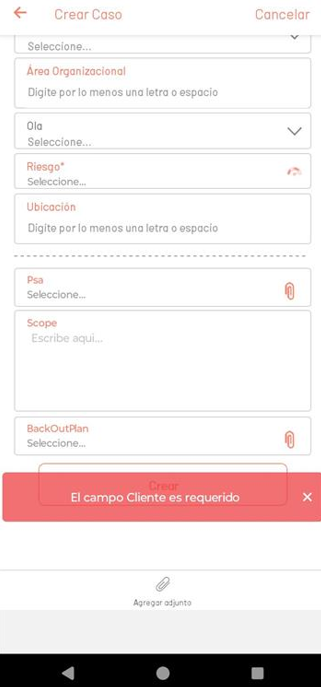
3. Enter the required basic data and scroll to the bottom of the form to create the case.
⚐ Note: When you try to create the case without filling in the required fields, the action will be blocked and the app will display a notification alert.
Automatic identification of duplicate cases
When creating a new case and activating the brand Identification of duplicate cases in the ASMS Administrator in the Projects > Settings, the App will validate that the following elements are the same to confirm the case as duplicate or not:
- Project.
- Type of case.
- Service.
- Category.
- Customer.
- Affair.
- Time configured in the administration console (Taken into account by seconds).
Options when having duplicate cases
If there are one or more cases that match each of the criteria, the user is informed, indicating the list of cases found as possible duplicates.
The user will have the options to add a public note for all the cases in the list or continue with the creation of the new case.
Once the case is created or the note is added, you will be redirected to the My Requests, where you can confirm the creation of the case.
IC Selection via QR Code Scanning
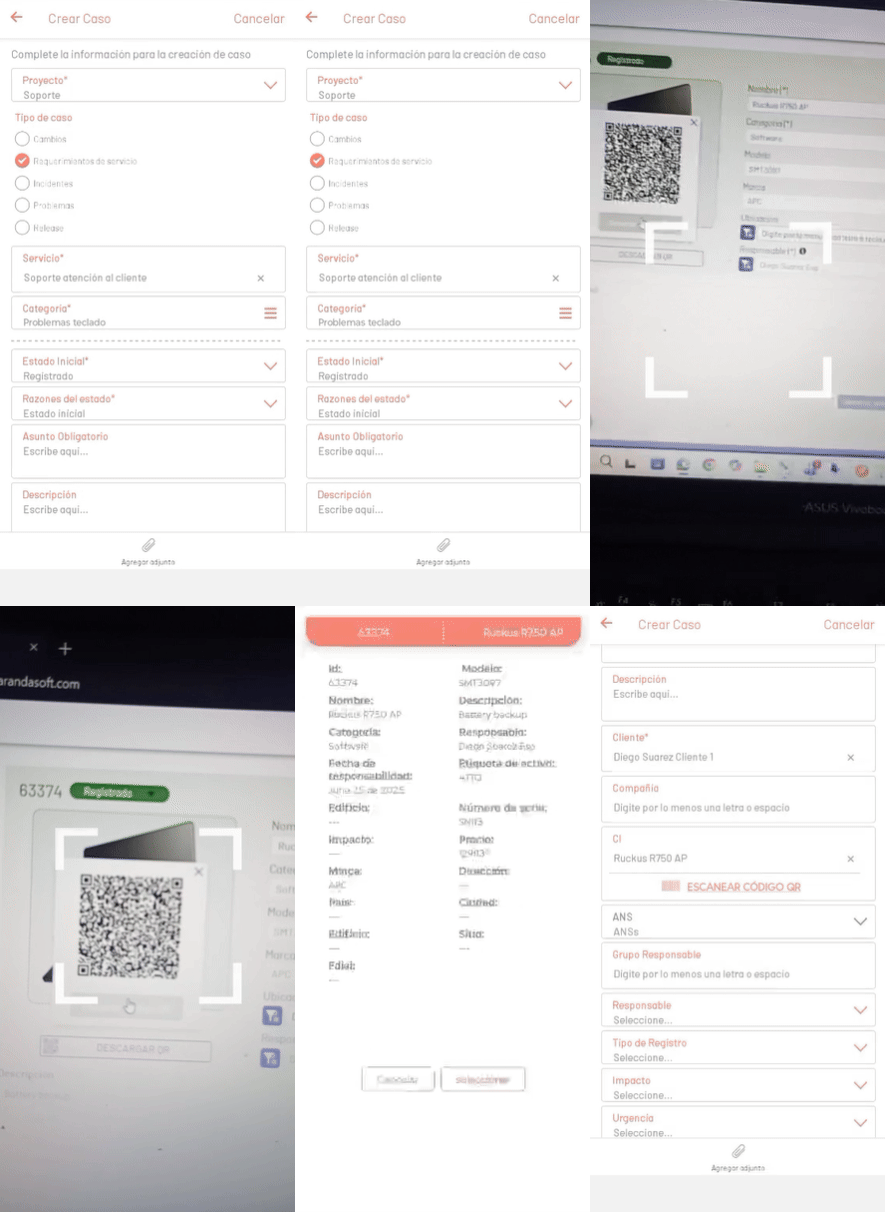
This functionality allows you to assign a CI to a case by reading a QR code generated from the CMDB console. The QR code contains detailed information about the CI, such as ID, name, category, responsible, serial, among others.
Creating a Case with QR Scanning
- To associate an IC by scanning, select the SCAN QR CODE.
- The camera will be activated to scan the QR code generated from the CMDB console.
- Click Select to associate the IC with the case, or in Cancel to return.
- If the selection is confirmed, the CI is associated with the case being created using the returned ID.
Note:
- When scanning an invalid QR code, in a completed state, or from a project that the user is not associated with, an error message will be displayed.
- By clicking Cancel, the scanning camera is closed; when you click Accept, returns to the camera to allow scanning of another QR code.